
1. Purpose
For Aruba Admin Login Setup with Azure MFA – Easy 2026 This document provides a detailed Guide Configure radius server Aruba controller – 2026 to implement administrator authentication on Aruba devices using Microsoft RADIUS (NPS) integrated with Active Directory and Azure Multi-Factor Authentication (Azure MFA) using Microsoft Authenticator.
2. Authentication Flow
Admin → Aruba Device → Microsoft NPS (RADIUS) → Active Directory (Credential Validation) → Azure MFA Extension → Microsoft Authenticator 📷 Image: Authentication flow diagram with MFA

Figure: Administrator authentication flow for Aruba devices using Microsoft NPS integrated with Active Directory and Azure Multi-Factor Authentication. Primary authentication is validated against on-premises Active Directory, followed by secondary authentication via Azure MFA using Microsoft Authenticator.
3. Prerequisites
• Aruba Controller (CLI/GUI access) • Windows Server joined to AD • Network Policy Server (NPS) role installed • Azure AD tenant • Azure MFA enabled for admin users • Microsoft Authenticator app installed on admin mobile devices • Internet access from NPS server to Azure MFA service
4. Microsoft NPS Installation & Base Configuration
4.1 Install Network Policy Server Role using Server Manager 📷 Image: NPS role installation

4.2 To begin with, open NPS (Local), right‑click it, and select “Register server in Active Directory.” After that, enter the Domain Account username and password, and ensure that this account has Domain Admin privileges.

4.3 Next, add the Aruba device as a RADIUS Client. Enter the Device IP and configure the Shared Secret — make sure the shared secret matches on both the NPS server and the Aruba device. After that, set the Vendor to RADIUS Standard by clicking Advanced and selecting RADIUS Standard from the list.

5. Active Directory Configuration
Now, create an AD Security Group (for example, Aruba‑Admins). After creating the group, add all authorized admin users to this group so they can be granted the required access.
6. NPS Network Policy Configuration
6.1 Create new Network Policy • Condition: Windows Group = Aruba-Admins • Access granted
6.2 Authentication Methods • Enable MS-CHAP v2 / PAP (as per Aruba support) 📷 Image: NPS Network Policy settings
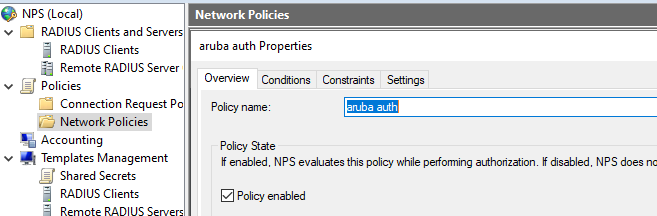
Add required Group.


At this stage, all settings should remain the same. However, if you want to apply role‑based access, then provide the Attribute Value according to the Aruba Attribute, using Attribute Number 4 for the Aruba Controller.
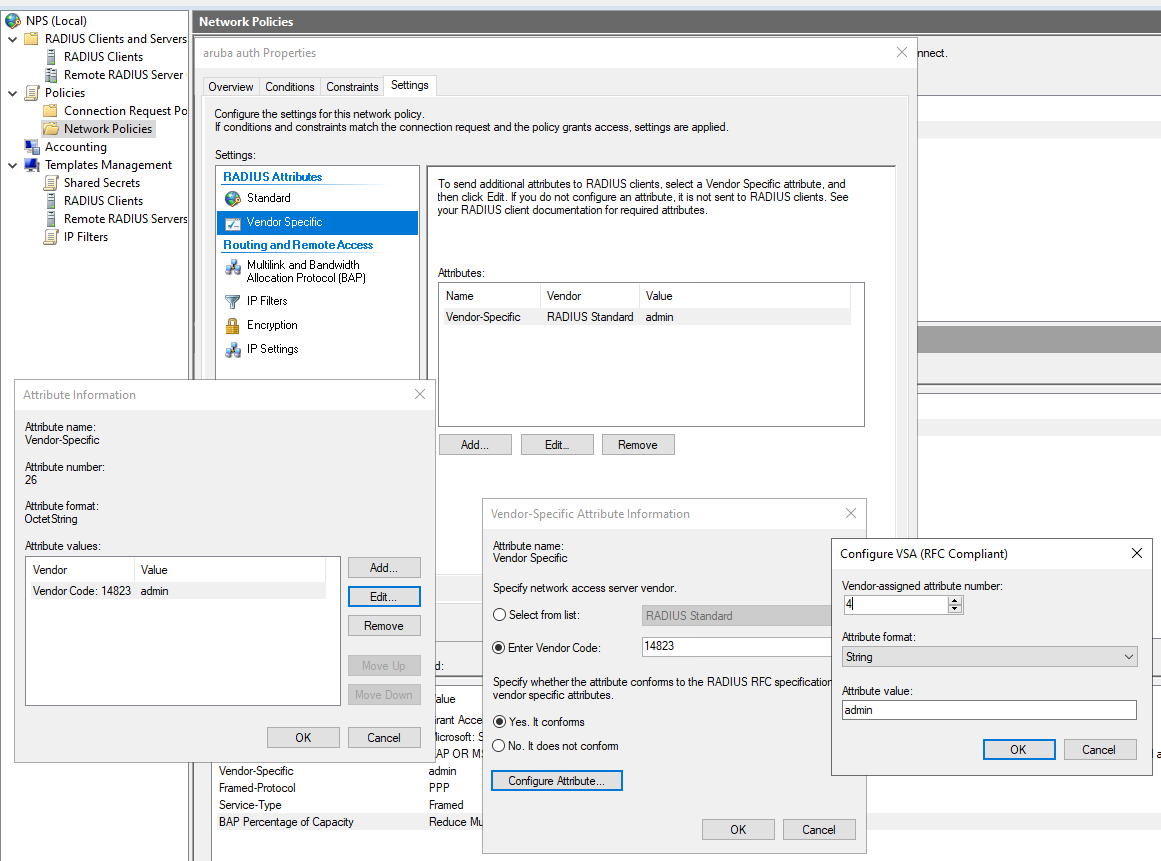
7. Azure MFA Extension Installation (Configure radius server Aruba controller – 2026)
7.1 Download Azure MFA Extension for NPS from Microsoft
7.2 Install the extension on the NPS server

7.3 Run this command in Power shell with Admin Rights PS C:\> cd ‘.\Program Files\’
PS C:\Program Files> cd .\Microsoft\
PS C:\Program Files\Microsoft> cd .\AzureMfa\
PS C:\Program Files\Microsoft\AzureMfa> cd .\Config\
PS C:\Program Files\Microsoft\AzureMfa\Config> .\AzureMfaNpsExtnConfigSetup.ps1
7.4 During installation, sign in using your Azure AD Global Admin credentials so the setup can complete successfully.
7.5 Registry Configuration for OTP Override (Aruba Limitation)
Due to a known platform limitation, Aruba devices cannot use Azure MFA number matching during RADIUS‑based authentication. As a result, only standard MFA methods are supported in this scenario. To ensure compatibility with push notification–based MFA, number matching must be disabled on the NPS server.
Registry Change Configuration Details: Aruba Admin Login Setup with Azure MFA – Easy 2026
Registry Path: HKEY_LOCAL_MACHINE\SOFTWARE\Microsoft\AzureMfa
Value Name: OVERRIDE_NUMBER_MATCHING_WITH_OTP
Value Data: (FALSE) The registry value is created by the Azure MFA NPS Extension by default. This configuration step modifies the existing value from enabled to disabled to ensure Aruba compatibility.
Setting this registry value disables Azure MFA number matching and forces standard push notification approval (Approve / Deny), which is supported by Aruba devices.
⚠️ Security & Operational Consideration
Importantly, this registry modification does not weaken multi‑factor authentication enforcement. MFA approval through Microsoft Authenticator remains mandatory for all administrator logins. This adjustment is applied solely to ensure interoperability between Aruba devices and Azure MFA.
Any modification to this registry key must be performed by authorized administrators and documented as part of the configuration baseline. 7.5 Verify registry keys and service status Get-Service AzureMfaNpsExtnSvc
Get-Item HKLM:\SOFTWARE\Microsoft\AzureMfa
8. Azure MFA Configuration
8.1 Enable Azure MFA for admin users in Azure AD
8.2 Configure Authentication Methods • Push notification (Microsoft Authenticator) • OTP as backup 📷 Image: Azure MFA authentication methods

9. MFA Authentication Behavior (Configure radius server Aruba controller – 2026)
• Primary authentication is done against Active Directory • Upon success, NPS invokes Azure MFA Extension • Push notification is sent to Microsoft Authenticator • Admin must approve request to complete login
In some cases, authentication requests may fail at different stages of the process. For example, when configuring the RADIUS server on the Aruba Controller, certain conditions can cause the request to be rejected.
- Active Directory Rejection:
If the username or password is invalid, the account is disabled, or the user is not a member of the authorized Active Directory group, Active Directory validation fails and Microsoft NPS returns an Access-Reject response to the Aruba device. Azure MFA is not triggered in this scenario. - Azure MFA Rejection:
If primary authentication succeeds but the user rejects the push notification, fails to respond within the configured timeout, or does not have a valid MFA method registered, Azure MFA denies the request. Microsoft NPS returns an Access-Reject response to the Aruba device. - NPS Policy Rejection:
Authentication requests may also be rejected due to Network Policy mismatches, RADIUS client misconfiguration, or protocol restrictions. In all failure scenarios, the final Access-Reject decision is enforced by Microsoft NPS.
10. Aruba Device Configuration
10.1 Configure RADIUS Server radius-server host key

10.2 Apply admin authentication profile 📷 Image: Aruba admin authentication configuration

11. Verification & Testing
• Login using AD credentials • Approve MFA push notification • Verify Event Viewer logs on NPS
12. Rollback / Break-Glass Procedure
• Keep local admin account enabled • Disable RADIUS authentication if MFA service is unavailable • Document emergency access usage
13. Troubleshooting
• NPS Event Viewer: Event ID 6272 / 6273 • Azure MFA logs in Azure AD • Verify time sync and certificates
14. Security & Audit Notes
• MFA enforced for all admin access • Logs retained for audit • Periodic review of admin group membership
To perform Upgrade Step by step Aruba Controller
Prepared By: Pahalawan Singh
Great content! Keep up the good work!